Wednesday, April 13, 2016

Take Care of Your Laptop Battery!

If you’ve ever left your MacBook charging constantly you know how that can ruin a battery. That happened to me with my first MacBook, then I learned how much a replacement battery costs!

To avoid this, it can be helpful to discharge your battery in full at least once a month, keeping your battery well-conditioned. With that in mind, there is a great little utility called Battery Guardian available. This free app reminds you 30 days after your last full discharge and recharge to do that again.

dssw-battery-guardian-calendar-and-menu-2016-04-13-07-41.jpg

Read more at the Battery Guardian website and start using your Mac’s calendar to keep your battery performing at its best!

One more note: the capacity of your battery will vary greatly. In some cases, Mac batteries have proven to lose 10-15% of their initial capacity in the first 6-12 months. My MacBook Pro (mid 2015 15”) lost over 10% in the first 6 months, but has maintained that reduced capacity since.

You can check the number of battery charge cycles and capacity by going to the system report:

  1. Click the Apple menu and hold down Option.
  2. Select System Information (topmost menu item)
  3. See the Power hardware data by clicking Power in the left pane.
  4. The full charge capacity is listed in mAh. The cycle count is number of recharges out of a maximum expected count of 1000 (for the newest models - earlier models were 500 or 300).

PastedGraphic-2016-04-13-07-41.png

Thursday, March 10, 2016

What are Mac Software Bundles?

WhatareMacsoftwareBundles%25252Canyway%25253F-2016-03-10-05-47.jpg

What are Mac Software Bundles?

From time to time (actually quite often), Mac users have available to them great “bundles” of software. These bundles are essentially an assembly of applications at a heavily reduced price, meaning you might get Parallels Desktop, 1Password and several other popular apps for less than the cost of buying just Parallels Desktop alone. Sometimes the bundles are repetitive so purchasers end up with multiple licenses of the same discounted applications. Additionally, the types of applications available in these deals sometimes have duplicative functionality. Do you really need two backup service trials?

Oh, yes, that’s another thing bundles often include: a trial period of a service like Evernote or Parallels Access. These offers hope you will enjoy the service so much you will continue to subscribe after the trial (or “included”) time period ends. One positive thing about these time-based services is that few, if any, of the bundles I’ve bought have required payment for continuing services at the time of signup. This contrasts greatly to the typical trial offer where you have the added headache of both remembering to and actually cancelling the service before a charge hits your credit card. Companies from adult entertainment (with their single-digit dollar trials for a few days, followed by huge monthly charges) to more respectable and renowned providers of services including web stores and cloud backups have been getting away with this trick for a long time. Be sure to check the rules for cancelling any bundled services before signing up!

How do I Find Bundle Deals?

There are numerous regulars in the bundle world, the companies that began the bundle phenomenon. The earliest I used was MacHeist, a bundle offering that has included four major events and many small bundles as well. For software developers, the benefit is exposure. I’m typing this blog on an app called MacJournal (link is to full company website, check the Products menu to find the latest version of MacJournal) that is truly a joy to blog via, and I wouldn’t have learned of it without a bundle purchase. Often the revenue (or a portion of it) is donated to the charity of your choice. Other bundles have come since from software download, review and promotion websites, with several of the most popular doing annual or semi-annual offers.

Because of the success of the early bundles, more programs of a similar nature have popped up, including some that are monthly, like those offered by Paddle (a company that helps developers build and market products). The link to Paddle above actually goes to their information at Epic Bundle, a great resource for finding bundle offers! A similar offer also from the people behind Paddle is Creatable. This company offers more design-item bundles, like Photoshop actions, website templates, icons, logos and fonts.

A great way to locate bundles is to simply search Google for “mac software bundles” and browse the results. I often use the search options to restrict to results from the last month so I only see current offers.

What’s New in Bundling?

The latest trends, in addition to monthly offers, are subscription services and pay-what-you-want deals.

Subscription services, like the one from Paddle and Creatable, offer the monthly deal at a reduced price for the commitment to buy. Again, unlike many other services, you can cancel at any time and as someone who has canceled a subscription of this type before, I can tell you it is easy to do.

Pay-what-you-want bundles often list an average price paid for a given offer, and you can choose to pay any amount for the bundle. Usually if you pay at least the current average you get all of the items in the bundle, but if you pay below the average price you might miss out on one or more of the hottest components of the bundle. This seems to be a smart alternative for developers, as rather than being limited to their tiny slice of revenue after the bundler’s fees (and the charitable donations), buyers in the Mac space will pay more and more, driving up the average. I’m not sure if this occurs in other segments of the software market but Mac users seem to be pleased to pay a fair price for quality items.

Final Thoughts

While bundles aren’t for everyone, there are some key features that can’t be overlooked by a budget-conscious enthusiast who wants to experiment with different apps and design content.

Many of the bundle programs hold the software downloads for very long periods, with Paddle offering a “Paddle Locker” for free that contains your purchased content and all related serial numbers or software keys in one handy place at my.paddle.com.

The design content is useful for the designers, as smart people looking for quality design work will commission custom work from the people who demonstrate great output in these bargain deals. Some of the automation tools for Photoshop are worth the price of the bundles alone! If you are launching a blog and need some pretty graphics, especially if you want a distinct site (since you can take the content and modify it in tools like Photoshop, Affinity Designer (got it in a bundle) or PixelMator.

Have you ever bought a bundle? If so, what is the best purchase you’ve made via a bundle?

Until next time -

E


Monday, March 7, 2016

How to Use Emoji Anywhere in Mac OS X (10.9 and Above)

Using Emoji on Macs!

Are you a fan of the Emoji? [Editor’s note: the plural for “Emoji” is both emoji and emojis, depending on the source, and while neither is necessarily “correct,” I chose to use the word emoji for both singular and plural. I have also used the word capitalized more often than not, but that is not the correct use. Emoji does not fit the criteria for being capitalized in all instances in English, so please pardon my grammar issues. I am a poorly educated, one language United States citizen, by the way!]

If you are, you should know there’s an easy way to add Emoji on Mac OS X, since version 10.9.x. From almost any text entry location in the operating system, you can use this tip. One of the greatest things of Mac OS X (to me) is how features like spell-checking and this shortcut to use Emoji are at the operating system level. Rather than having to reinvent the wheel, or maintain a custom dictionary for checking the spelling of documents in different word processors, in Mac OS X you can rely on a system-level feature that maintains this functionality everywhere.

How to Use Emoji Anywhere in Mac OS X (10.9 and Above)

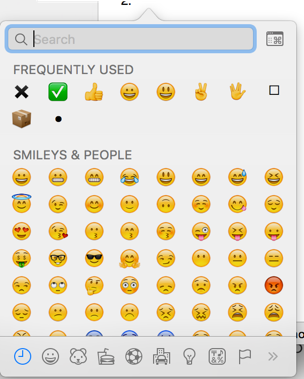
  1. Open the character pallet by pressing the keys, control, command and the space bar at once.
  2. In El Capitan, the result will look something like this:
    • PastedGraphic-2016-03-7-10-13.png
  3. To insert a character, simply click it!

You can navigate the various types of Emoji using the icons at the bottom (like clicking the animal head will show animal Emoji). If you prefer to work with your touchpad or mouse, you may scroll down as well, and each category of Emoji will be highlighted as you scroll into it. Since I ❤️ these symbols, I love how they are so easy to use from any place!

Keep in mind a few caveats:

  1. Not all symbols are visible on all devices and there is no built-in mechanism for warning you of that or correcting the appearance on the other end (where someone trying to make sense of a post, message, document, etc., doesn’t have support for Emoji). For example, this list uses an ‘X’ (✖️) Emoji. If someone is on a device without that symbol’s presence, the appearance of this list is unpredictable.
  2. While certain symbols are quite clear in their meanings, like a heart for “love” as in “I love you” or “I love this,” others are not. Some are too small to be recognized clearly (differences in various smiley-face emoticons are a great example) and some simply don’t translate well.
  3. Building on the last point, make sure to use the Emoji where appropriate. Professional correspondence is not a place for them and when using phonetics to string together Emoji to make a bigger word (or parts of a bigger phrase), consider how people might pronounce them in different parts of the country (or world), even speaking the same language.

Hopefully you’ve enjoyed this tip! As someone who recently passed along his old MacBook Pro to his (almost 75-year-old) mother, check out some of the cool products from Amazon listed below. These are items that have aided her transition to Macs from PCs and aren’t bad for anyone learning Mac OS X again or for the first time.

Until next time -

E

Saturday, March 5, 2016

muConnect - Magnetic Lightning Cable Connector

Hello iOS fans -

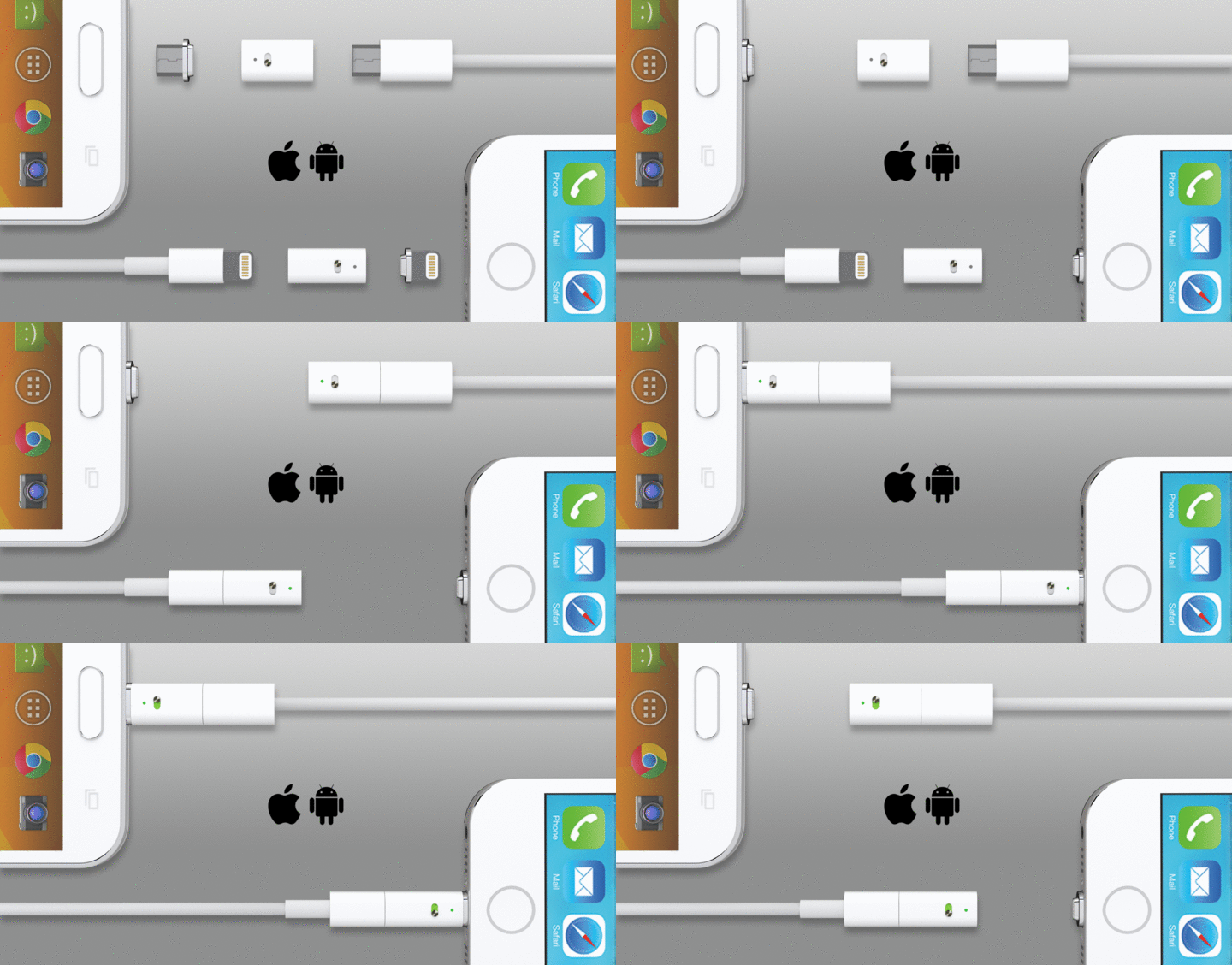
If you’re a user of a MacBook or MacBook Pro, you are used to having the safety of a magnetic power connector — the greatest thing to prevent a laptop from being dragged by a dog and causing a massive drop! Now you can get the same thing for your iOS devices. Check out muConnect - it’s a great option for those of us who want that same safety and security with our mobile devices.


5uisk9.jpg-2016-03-5-11-14.gif


All the best,

Chris

2016 is HERE and I AM BACK!

Hello fellow Apple fans and anti-fans alike,

Sorry for the long absence, but I am now back to share the best curated finds from across the web for people interested in Apple products. Whether you are a casual user of an iOS device or an experienced developer of low-level applications for Macs, this blog will return to regularity, sharing the best items from the web along with newly researched topics for all interested parties. Part of this year’s concentration will be on making the best use of Apple products, including finding great free educational resources for you!

One such resource is called coursera and at that site you can learn all about developing code among other topics (they offer courses with as wide of an array of topics as many universities). Check them out and be sure to follow up for more great options here at Knowing Apple in the coming months.

All the best,

Chris

Monday, August 10, 2015

Got a CPU with Turbo Boost? See HOW It Works Here!

Greetings Apple Fans!

If you have a newer MacBook Pro or other Apple computer with a Turbo Boost-enabled CPU, then you probably have considered, when is my CPU operating at a faster speed and is there a way to see how much it is boosted at what times?

YES! There is! The Intel Power Gadget is a fine tool made for exactly that purpose. Using the link, you can install the third version of the software easily. After downloading the DMG at the link, use the Install Intel Power Gadget.pkg to install it on your computer.

Be sure the system you use has a 2nd generation CPU with Turbo Boost, as the first generation is not supported.
After completing, you will open the app, inside the Intel Power Gadget folder in Applications.

With this tool you'll see the frequency of the processor as it runs. Notice the screenshots above, and you'll see the performance.

This is a great tool to use for understanding how effective the Intel CPU is at managing both power (impacting heat as well) and the frequency. I think you'll find it very useful for understanding the great value of the processor in your computer.

Saturday, April 25, 2015

Automator Actions for Photos - OS X 10.10.

By now if you have update to version 10.10.3 of Yosemite, you’ve noticed the Photos app. If you are like me and enjoy the way Automator can reduce effort required for repetitive tasks, you might have been disappointed to see that while Photos is scriptable (from AppleScript), it does not come with any Automator actions.

Luckily, the fine folks at https://macosxautomation.com have provided us some! Click to download Photos Automator actions.

PastedGraphic-2015-04-25-07-46.png

These actions are a nice start, and should at least allow you to replace any workflow you built for iPhoto.

Overall, I think Photos is an improvement, but I am disappointed that there is no way (so far) to launch an external editor as there was in iPhoto. There are times when you want to jump straight into Pixelmator or Photoshop and instead you have to go to those apps and open the Photos section in the Finder sidebar or export the image from Photos first.

What do you think of Photos so far?

Thursday, April 23, 2015

Office for Mac - FREE Preview - DOWNLOAD LINK!

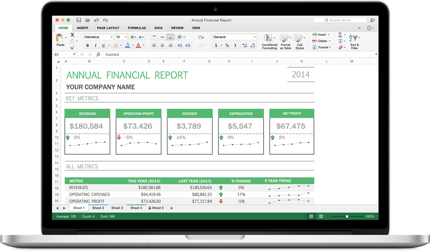
Want to try out the upcoming Office 2016? This is available for Macs now (actually for Windows and Windows Tablets too!) so check out this link to read about it!

https://products.office.com/en-us/mac/mac-preview

PMG_Image_Word_860x503-2015-04-23-06-12.pngPMG_Image_Excel_860x503-2015-04-23-06-12.png

ENJOY!

Tuesday, March 10, 2015

Affinity Photo BETA

ANNOUNCEMENT - Serif, the makers of awesome Illustrator competitor (yes, I said competitor, because even though it’s approximately $50, it’s got much of the power of the Adobe app that would cost you that much to *rent* for two months via their cloud platform), have released their beta of a new Photoshop killer called Affinity Photo.

Those of you (thanks to all 350 or so of you LOL) who read this blog know I’m a diehard Pixelmator (link) fan, and it takes quite a bit to convince me to try something else when I have a perfectly good solution in place. That being said, Serif is a great company and Affinity Designer (link) is a fantastic and inexpensive power tool that all budding graphic designers and just bozos who have blogs and websites like me should use.

This new product is available at their website after a free signup for the beta here.

The company also makes a great selection of Windows applications, including a powerful website designer called WebPlus X8, with a free version called WebPlus Starter. Check them out and support quality software companies. We need more of these businesses to be successful if we want powerful applications that aren’t bloatware. Personally, that’s what keeps me away from Adobe products, even more so than the cost (which is really too high, because they cut could the price in half and get double the customers and if they cut it to just 25% I am 100% sure they’d get more than four times the buyers). Just yesterday I was considering a download of Acrobat Reader to use with (yes I am a nerd) my 40 Years of X-Men DVD PDF set from Marvel. Something bothers me about the 110 MB install for a reader when other applications are 10 MB and those smaller applications do everything I need!

Thanks for reading the blog - please comment

AffinityDesigerExampleBanner-workedonandreducedinPixelmator-2015-03-10-06-40.jpg

Tuesday, February 17, 2015

Adding Functionality to Spotlight: FLASHLIGHT

A clever Mac developer reverse-engineered the API for Spotlight to give us the ability to get Google searches rather than Bing when using Spotlight in Yosemite.

weather-2015-02-17-09-19.png

The application is called Flashlight and can be downloaded by visiting the page found if you click the name or the image above.

Big thanks to Nate Parrott and many others who have contributed to the project. You may also download the source code at GitHub.

There are more than 100 plugins for this tool - if you find Spotlight as useful as I do, you’ll definitely love Flashlight!

UPDATE: to develop a plugin, check out the instructions provided here.


Wednesday, November 5, 2014

A great utility for RENAMING files (Mac OR Windows)

While I have used their products in the past (A Better Finder Attributes), this morning I discovered this renaming utility from Publicspace.net.

A Better Finder Rename is a neat file renaming utility that I use on my site.

Check out Better File Rename for Windows!

This application offers more renaming options than any of us might need to use ever! As I began developing my new Magento web store (opening later this month, http://20zen.com ) I noticed that all of my filenames have spaces and some have price information, as storing the cost of a product with a scanned image of the cover seemed like a quick fix until I built my database.

With Better Rename I can replace spaces with dashes and even grab picture dimensions from the file to append to the filename, making it easy for me to know which files should be used for dedicated thumbnails and which would be used for zoomed picture links.

You can buy the application from the developer’s website or on the Mac App Store.

Enjoy!

ScreenShot2014-11-05at10.20.54AM-2014-11-5-10-13.pngScreenShot2014-11-05at10.21.04AM-2014-11-5-10-13.png

Friday, October 24, 2014

Low-Cost Self-Improvement (Training for a New Career!)

All it takes to get a competitive edge in today’s changing economy is the right skill set. While there are many amazing free online courses available, these courses offered as part of a Name-Your-Own-Price bundle from Mac App Deals (and StackSocial) are a great place to start for a low cost. First hand experience tells me some of these courses are not only delivered with excellence, they are up-to-date and feature some of today’s most in-demand technologies, including developing for iOS!

This cross-platform Game Design Bundle covers Unity 3D, art design and even engaging customers! Another offering covers iOS 8 and Apple’s new programming language, Swift, at $89 for more than 36 hours of course material. Check out the Complete iOS 8 + Swift Developers Course.

I highly recommend Mac App Deals just like I did Paddle.com in the past.

exclusives.macappdeals.com-2014-10-24-10-11.png

There are other promotions currently active that feature great Mac applications, also at a crazy-low bundled price. You can see them by clicking the Mac App Deals link or image above.

Enjoy!

Sunday, September 28, 2014

Perfect Case and Keyboard for the iPad Air -

One of the disappointing things about the accessories for the iPad series, going back to the original model that I owned, has been the difficulty getting a solid keyboard/case that is both compact and effective. The original keyboards offered by Apple were basically a translation of the standard Mac keyboard layout into a device with an original iPod connector/stand. This unit lacked flexibility and was surprisingly expensive considering the few features it had. Remember, this keyboard wasn’t even wireless!

Fast forward a few years and each new model of iPad has a number of keyboards from an array of manufacturers.

This post is about one that I absolutely love - it’s perfect for the iPad Air and it is available for a steal right now on Amazon.

PastedGraphic-2014-09-28-13-12.png

The Kensington KeyFolio Exact with Removable Bluetooth Keyboard is a compact accessory, barely bigger than the iPad. The bluetooth keyboard is rated at more than 900 hours of time on a single charge of its easily rechargeable battery. The keyboard features dedicated buttons for volume, the home screen and even Siri.

Make no mistake, this keyboard does not make the iPad Air a replacement for your laptop. The Surface Pro advertises as such and may even do it; however, this keyboard will make using the iOS versions of the iLife applications much easier. The combination of the iOS design aesthetics and easy keyboard typing make creating rich documents a breeze.

Right now this keyboard is available for just $25.22 via Amazon Prime, a great savings over the suggested retail price of $89.99.

Saturday, July 19, 2014

Swift Programming Language (XCODE Beta)

The Swift programming language beta is now available to even free memberships in Apple Developer.

You can access the download here. Remember, an annual membership is just $99 for individuals and allows you to publish apps to the Mac App Store, opening a world of customers to you!

Enjoy!

Tuesday, June 17, 2014

Macs Fan Control - Solving Freezes on iMac Late 2009 Models

Readers of this blog might know I’ve complained about frequent lockups on my desktop machine, an iMac Late 2009 model. The problems have been happening since 10.6 and I’ve made little progress at determining the source.

The freeze is an odd one: the mouse pointer still moves fine and you can even remotely connect via SSH for a brief period after the freeze, but it is impossible to control applications or reboot. A full reinstall seemed to resolve things for a while, but then it started freezing again. I tried to isolate the running apps, but nothing is different from my MacBook Pro install, so that didn’t help.

Finally, I found a few posts suggesting this was a result of the GPU overheating in iMacs of that era. I had tried several fan control apps but still couldn’t get one to work. For one thing, the feature in some fan control apps that checks the sensors to decide when to increase fan speed does not seem to work with the Late 2009 hardware. I was about to give up when I found out about Macs Fan Control.

With this app, I have to manually set the fan higher - the select by sensor doesn’t work (as mentioned). Below is an image from the same app installed on my laptop.

PastedGraphic-2014-06-17-13-36.png

I generally increase my CPU fan to 3000+ RPM on warm days before the temps rise much, and I am happy to report that after almost a month, no freezes.

Prior to that I was averaging at least one per day.

If you’ve run into the same problem, let me know in the comments if this fix works for you.

Monday, June 16, 2014

Microsoft OneNote - Step-by-Step

In March I told you about Microsoft OneNote’s free release for Mac OS X and iOS. Since that time, I’ve gotten far more into using the application and I must say, it’s a perfect note-taking tool that lets you keep your content synchronized across all devices. Using the app effectively is easier thanks to continuing improvements to the design.

Not Sure You Want OneNote?

Check out Microsoft OneNote from the Mac App Store and look at the screenshots. This notebook is quite powerful, with full rich text, images, controls like checkboxes and much more to make it the perfect companion for basic project work. No, it’s not a replacement for a powerful CRM or other SFA tool. It’s not Excel or Word. It is a synchronized notebook, and it’s a pretty good one at that.

Today’s post walks through adding a new synchronized notebook, then adding a page and forcing a synchronization.

Make sure you have a Microsoft account, such as a live.com email address. You can create an email account for that domain by clicking here.

Once you have that account and you’ve installed OneNote, walk through these steps.

Make a new Notebook

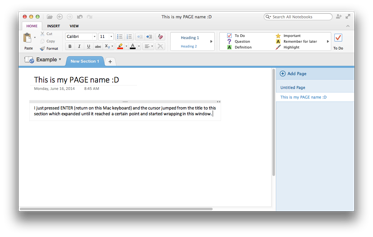
PastedGraphic-2014-06-16-08-24.png

PastedGraphic1-2014-06-16-08-24.png

PastedGraphic3-2014-06-16-08-24.png


Add a Page

Click the (+) on the right side of the box, or use the File menu.

PastedGraphic4-2014-06-16-08-24.png

Name the Page

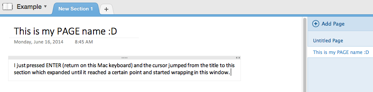
Click above the day of week, date and time then type a page name. It will appear in the blue column at right.

PastedGraphic6-2014-06-16-08-24.png

PastedGraphic5-2014-06-16-08-24.png

Rename the Section Tab

Just double-click the tab and type.

PastedGraphic7-2014-06-16-08-24.png

Synchronize

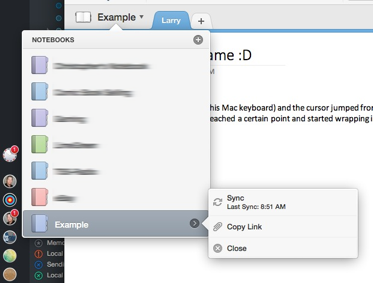
Click the notebook name, then scroll down to the name (again, kind of redundant, right?), click the > and select Sync.

PastedGraphic8-2014-06-16-08-24.png

UP NEXT

This week we’ll explore how to open this Notebook “Example” on another Mac and on an iPad Mini.

Thanks for reading!

Thursday, June 5, 2014

Need a System Configuration Summary? Try EtreCheck!

If you’ve ever gone to Apple’s support forums and asked for help with a problem (or any support forum, for that matter), chances are a savvy guru will tell you they need some basic configuration details for your Mac. There is a great (and free) tool that will help you gather that information quickly, and it’s called EtreCheck.

After installing into your application folder, running EtreCheck will scan your system and full information from settings files and scan important system folders for things like Kernel Extensions, User Launch Agents, Internet Plug-Ins and 3rd Party Preference Panes. Here’s what you see on launch:

PastedGraphic-2014-06-5-16-36.png

On completion, you’ll see a window with a scrollable collection of this data, like this:

PastedGraphic1-2014-06-5-16-36.png

From here you can copy the report to the clipboard and paste into a forum window or a rich document with even the free TextEdit app provided with Mac OS X). A detailed overview of the sections is available at this About EtreCheck page.

The nature of each section, typical problems and corresponding solutions would be too much to cover in a single blog post. For that matter, you’ll find dozens (hundreds?) of posts about topics like iMac freezes on Apple’s own support site, so this isn’t a problem solver. However, the first step to getting (free) help from people in the know is often providing them all of the details about your system in one post so they don’t have to ask you for these facts interactively.

As always, it’s a great idea to know your closest Apple Store or Apple Authorized Service Provider (AASP). I want to give a shout out to a favorite near my hometown, maccentric. They have provided service for my Macs, both in-warranty and out-of-warranty, and I have always been satisfied to say the least.

If you have a favorite non-Apple AASP, please share the name and URL in the comments below!

Saturday, May 31, 2014

For Those Who Missed It - Apple Opens the OS X Betas

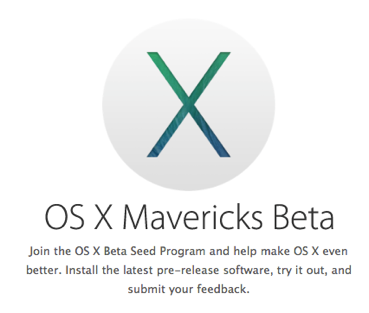
In case you (like ME) missed the news, Apple has opened OS X betas to consumers who join the Beta Seed Program. Previously limited to developers, this programs aims to assist both Apple and power users by providing more testers that can report issues as they are discovered (through a bigger range of testing) and shortening the release cycle for fixes. After joining the program, consumers have the ability to test drive pre-release versions of software and use the new Feedback Assistant to report bugs. While these pre-release versions might have issues that require a full erase-and-restore operation, some of us are willing to take that risk to have advance access to new features.

At this time it is not specifically stated which betas consumers have access to, but it is my educated guess that it will strictly be bug fixes and minor pre-releases. I would not expect to see a developer seed of 10.10 at the same time it is offered to developers after next week’s WWDC.

Join or Login - Apple’s Beta Seed Program

Learn more about the Beta Seed Program

PastedGraphic-2014-05-31-13-18.png


Wednesday, May 28, 2014

Pixelmator - 3.2 Released - "Sandstone"

Readers of my blog have heard over and over how Pixelmator is a steal of a deal. Well, the app just got better. With the latest update (Pixelmater on App Store), the repair tool has been rewritten from the ground up. Once again we have access to Photoshop-quality bitmap element removal and background restoration for < $40.

More information about the product and this update, including instructional videos, can be found at the Pixelmator website.

UPDATE: as of 12/14/2014, Pixelmator version 3.3.1 is available - see this blog post from the developers.